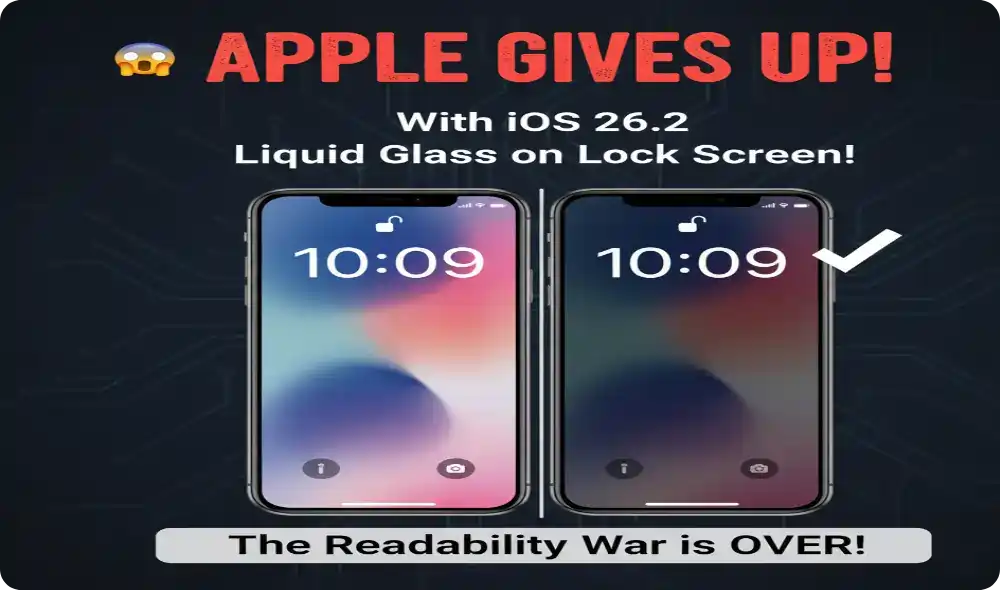
It seems Apple has officially waved the white flag in the great “Liquid Glass” readability debate! The tech giant has just released its latest update, iOS 26.2, and the headline feature is a direct concession to users who found the flagship visual redesign too distracting, too transparent, or just plain hard to read.
The major news: With iOS 26.2, Apple lets you roll back Liquid Glass again, specifically targeting the most critical element on your phone—the clock on your Lock Screen. For users who found their wallpaper clashing with the time display, making it illegible, the solution is finally here in the form of a simple, intuitive slider.
This move marks the second time Apple has given users an “escape hatch” from the Liquid Glass look since its debut with iOS 26, suggesting that user feedback has forced the company to soften its bold, glass-like aesthetic. iOS 26.2 is not just about looks; it brings several practical features, but the Lock Screen clock transparency control is the update that everyone is talking about!
The Controversy: Why Users Hated Liquid Glass
When Liquid Glass launched with iOS 26, it aimed to unify the Apple ecosystem with a translucent, fluid material that reflected and refracted the background. While visually stunning in controlled demos, the effect quickly caused real-world problems.
- Readability Issues: Many users found that the highly transparent, refractive nature of the material made text, icons, and most critically, the time on the Lock Screen, incredibly difficult to read, especially in bright sunlight or against busy wallpapers.
- The First Fix: The backlash was so immediate that Apple introduced a system-wide “Tinted” option in iOS 26.1 to add more opacity to floating elements like tab bars and control centers. This was a broad fix, but it didn’t solve the core problem for the most visible element: the clock.
The New Solution: Granular Lock Screen Control
Apple is now adopting a more granular, element-by-element approach, starting with the area where clarity matters most.
- The Slider is Here: In iOS 26.2, when you customize your Lock Screen, you will find a new, dedicated slider control within the clock customization settings.
- Total Transparency Control: This slider allows you to fine-tune the appearance of the Lock Screen clock transparency across a full spectrum. You can drag it all the way to the left to make the clock nearly fully transparent (“glassy”), or drag it all the way to the right to make it more opaque and “frosted,” ensuring maximum legibility regardless of your wallpaper.
- User Empowerment: This gives users the final say. You no longer have to choose between a gorgeous wallpaper and being able to quickly tell the time—you can have both. This pragmatic response shows Apple is prioritizing usability alongside its ambitious design goals.
Beyond the Glass: What Else is New in iOS 26.2
While the design rollback stole the show, iOS 26.2 brings several other important enhancements aimed at productivity and safety.
- Alarms for Reminders: You can now mark a reminder as “Urgent” to trigger a full, attention-grabbing alarm instead of just a standard notification ping. This is a game-changer for critical tasks and deadlines.
- Enhanced Safety Alerts: For users in some regions, the update enhances safety alerts for imminent threats like natural disasters, providing rich information, affected maps, and links to guidance directly on your Lock Screen.
- Podcasts Chapter Generation: The Podcasts app now uses AI to automatically generate chapters and links to mentioned content, making it much easier to navigate long episodes and find specific topics.
- Offline Apple Music Lyrics: Users can now view lyrics for downloaded songs in Apple Music even without an internet connection, making the sing-along experience reliable everywhere.
How to Get the Update
The iOS 26.2 update is available now for all compatible iPhones (iPhone 11 series and later).
- Go to Settings on your iPhone.
- Tap General.
- Tap Software Update.
The ability to control the Lock Screen clock transparency finally gives users a way to live with the Liquid Glass design on their own terms, making the iOS 26.2 update a must-download for everyone who owns an iPhone.

Anushka is an automotive writer with three years of experience creating reviews, features, and technical guides. Passionate about cars, she translates complex engineering details into engaging, reader-friendly content. Covering market trends, safety innovations, and electric-vehicle advancements, Anushka delivers insightful, trustworthy articles that fuel readers’ passion for the open road.