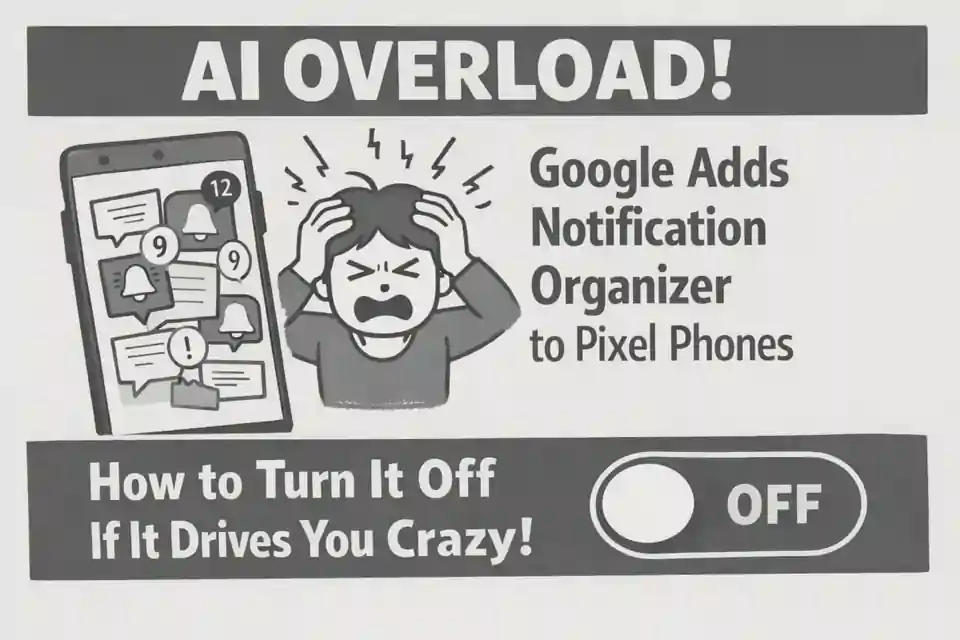
Pixel users, check your phones—a new feature, powered by on-device Artificial Intelligence (AI), is rolling out right now, and it’s dividing opinions faster than a political debate! Google Adds Notification Organizer to Pixel Phones, a tool designed to tackle the overwhelming flood of pings, promos, and news alerts that constantly clutter your screen.
The idea is simple: use AI to determine which notifications are low-priority (like coupons or general news) and silently bundle them together, keeping your main feed clear for important messages. While this sounds like a digital detox dream, some users are already reporting that the Notification Organizer, which turns itself on by default, is hiding alerts they actually want to see.
For those who prefer their notifications raw and chronological, or who find the AI grouping confusing, the good news is you can take back control. This article explains exactly what the feature does, which Pixel phones are getting it, and crucially, How to Turn It Off completely or fine-tune it to your liking.
What Is the Notification Organizer and Why Is It on My Phone?
The Notification Organizer is Google’s latest attempt to use AI to improve the day-to-day user experience on its flagship devices. It’s part of the recent Android 16 QPR2 update and December Feature Drop, targeting the newer Pixel 9 and Pixel 10 series phones.
🤖 The AI Filter at Work
Instead of relying on app settings alone, the AI notification organizer processes the content of each incoming alert on your device (meaning your data stays private!) and sorts it into categories:
- Promotions: Sales, coupons, special offers.
- News: Top stories, general headlines.
- Social: Likes, post updates, non-chat activity.
- Suggested: Newsletters or media recommendations.
By default, the Promotions and News categories are turned On and silenced. They appear grouped together at the bottom of your notification shade under the “Silent” section, meaning you don’t get a sound or vibration—a massive relief for people tired of constant pings!
How to Turn It Off (or Tame It) Step-by-Step
If you find that the Notification Organizer is being too aggressive, or if you simply don’t trust a machine to decide what’s important, here is how to turn it off or customize it fully.
Option 1: The Quick Kill (Turn Off Completely)
This is the easiest way to revert to the old notification system, where everything appears as it comes in.
- Open your phone’s Settings app.
- Tap on Notifications.
- Look for the line labeled Notification organizer (it should be near the top).
- Tap on Notification organizer.
- At the very top of the screen, you will see a toggle switch. Flip this main toggle to the Off position.
Your notifications will instantly return to the standard, chronological format, and the AI will stop grouping and silencing your alerts.
Option 2: The Precise Tweak (Keep the Feature, But Change the Rules)
If you like the idea but don’t want to miss specific categories, you can customize the AI notification organizer settings:
- Follow Steps 1-4 above to get to the Notification organizer settings screen.
- Uncheck the Categories: Uncheck the boxes next to any category you do not want the AI to manage. For example, if you want all News alerts to appear instantly, simply uncheck the “News” box.
- Manage Apps: Scroll down to the bottom and look for Manage apps. This is critical. Tapping this allows you to select specific apps (like your banking app or a critical work tool) that you want to EXCLUDE from the organizer entirely. Any notification from an excluded app will always appear at the top, unbundled and un-silenced.
- Always Expand Bundles: You can also enable the “Always expand bundles” toggle. This will still group the notifications, but they will automatically show all the content without needing an extra tap, making review slightly quicker.
Why Google Made This the Default Setting
While turning it on by default can be frustrating for power users, Google’s rationale is clear: Notification overload is one of the biggest complaints about Android phones. By having the feature enabled, Google hopes to showcase its utility immediately to the average user drowning in alerts from social media, shopping apps, and headlines.
However, remember the key fact: this feature relies on on-device AI, and as Google itself warns, it “may sometimes make mistakes.”
Ultimately, whether you love it or hate it, the new Notification Organizer is a major quality-of-life feature for Pixel phones. Now that you know How to Turn It Off, you are fully in control of your digital life—which is exactly how it should be!

Anushka is an automotive writer with three years of experience creating reviews, features, and technical guides. Passionate about cars, she translates complex engineering details into engaging, reader-friendly content. Covering market trends, safety innovations, and electric-vehicle advancements, Anushka delivers insightful, trustworthy articles that fuel readers’ passion for the open road.