
The rollout of a major operating system update is usually a time of excitement for technology enthusiasts. It promises to breathe new life into your current hardware, introducing fresh visual overhauls, tighter security protocols, and advanced software features. However, as history frequently demonstrates in the mobile industry, these massive software jumps can occasionally bring unexpected system instability. Following the highly anticipated arrival of Android 17, a growing number of Google Pixel owners are reporting a highly frustrating connectivity bug that alters their daily network performance.
According to multiple reports popping up across online community forums, several prominent Google Pixel devices are completely failing to maintain a stable 5G network connection immediately after installing the stable Android 17 build. Instead of enjoying blazing-fast network speeds, users are finding their premium Smart Phone locked onto older LTE or 4G bands. Fortunately, the tech community has already discovered a brilliant, straightforward workaround that allows you to eliminate this network cellular bug entirely by yourself—without waiting for Google to deploy an official OTA patch.
Tracking the Android 17 5G Bug: What Pixel Owners Are Reporting
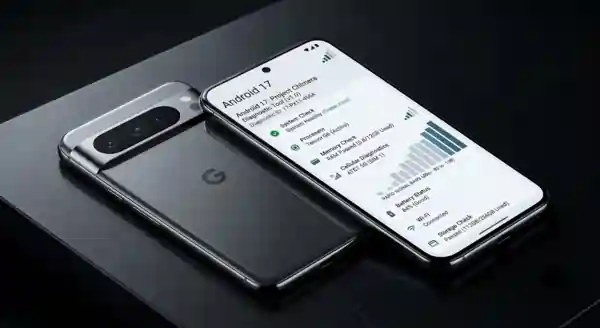
The cellular connectivity issue does not appear isolated to just one particular generation of Google hardware. Instead, it is impacting a wide spectrum of devices, including the previous premium lineup and the absolute latest flagship releases. On popular social platforms like Reddit, users have begun compiling their experiences to find a common denominator for the cellular dropouts.
For instance, a Pixel user posting under the handle “BackpackBuddha” noted that prior to downloading the Android 17 package, his Pixel 9 Pro held a rock-solid, high-speed 5G signal without a single hiccup. Instantly following the system reboot post-installation, the device refused to recognize any 5G towers, dropping back to a standard LTE signal. Similarly, another forum member, “livingitdaybyday,” discovered that his top-of-the-line Pixel 10 Pro Smart Phone faced an identical roadblock, leaving him stuck on 4G bands despite sitting directly within an area with excellent 5G carrier coverage.
The Secret DIY Workaround: How to Use Repair Mode to Fix Your Signal
When a premium mobile device faces a network breakdown, most consumers assume they need to perform a full factory reset, contact their cellular carrier, or surrender their device to an authorized repair center. However, this particular Android 17 bug can be eliminated using a built-in privacy feature that most general users rarely interact with: Repair Mode.
Reddit user “livingitdaybyday” discovered that toggling this secure environment effectively forces the underlying cellular modem firmware to re-initialize its network handshakes correctly. By entering and immediately exiting this diagnostic space, the device successfully clears whatever temporary cache or configuration file was blocking the 5G band recognition.
Step-by-Step Guide to Restore Your 5G Connection
If your device is currently suffering from degraded cellular performance, follow these exact system steps to reset your network state:
- Navigate to Settings: Open the main system menu on your Google device.
- Locate System Options: Scroll down and select the “System” sub-menu.
- Open Repair Mode: Tap on “Repair mode” and select “Enter repair mode.”
- System Restart: Allow the device to securely reboot into the clean diagnostic environment.
- Exit and Return: Once the phone boots up inside Repair Mode, simply select the option to exit, verify your passcode, and let the system reboot normally.
Technical Note: Google’s native Repair Mode requires at least 2GB of free internal storage space to execute properly. This secure sandbox environment is engineered to protect your personal applications, sensitive documents, private messages, and camera photos from being accessed by external technicians during physical hardware servicing.

Other Minor Android 17 Visual Flaws: Disappearing Widgets
While the 5G connectivity dropout is undeniably the most severe issue affecting daily usability, it is not the only software bug that slipped through with the initial Android 17 release. A separate group of users has noted that their carefully arranged home screen widgets vanish completely after finishing the system upgrade.
Thankfully, diagnostic analysis shows that this visual flaw is not a widespread pandemic. Instead, it appears strictly limited to enterprise users who have a distinct Work Profile configured on their hardware alongside their personal account. The dual-profile data separation layer in Android 17 seems to temporarily misplace the rendering paths for specific background widgets. Google has already formally acknowledged this home screen flaw and confirmed that an upcoming minor security update will patch the rendering issue permanently.
The Bright Side of Android 17: Next-Gen Multitasking and Creativity Features
Despite these early software bugs, Android 17 is being widely praised as a massive leap forward for mobile productivity, introducing several features that fundamentally enhance how you interact with your Smart Phone. Once you use the Repair Mode trick to sort out your 5G network connection, the new operating system offers some truly impressive upgrades.
App Bubbles: True Desktop-Class Multitasking
The clear standout productivity feature in this release is App Bubbles. This tool allows you to convert any standard application into a floating, interactive digital bubble that rests neatly along the edge of your screen.
- Instant Activation: Simply long-press any application icon on your home screen or app drawer to instantly minimize it into an active bubble.
- Seamless Task Switching: You can keep up to five distinct App Bubbles active on your screen simultaneously, allowing you to jump between a live chat, a document editor, and a work spreadsheet without opening the full application switcher window.
Elevating Content Creation with Screen Reactions
For digital content creators, remote workers, and educators, Android 17 introduces a powerful utility called Screen Reactions. This feature allows you to record your mobile display while simultaneously recording your face using the front-facing selfie camera.
What makes this feature truly remarkable is its integration with Google’s latest on-device Artificial Intelligence models. The software automatically identifies your physical silhouette and completely eliminates your background in real-time. It acts exactly like an advanced virtual green screen packed right into your pocket, letting you produce high-quality reaction videos, tutorial guides, or software walkthroughs cleanly without needing specialized editing software.
How to Properly Prepare for and Install Android 17
To avoid common installation errors and ensure a smooth transition to the new operating system, it is vital to prepare your device correctly before tapping the upgrade button.
First, ensure that your device has at least 5GB to 8GB of free internal storage to prevent installation blocks. Back up your essential data, WhatsApp chats, and local media to your Google Drive account. Finally, ensure your battery is charged past 50% or keep the device connected to a stable charger during the process. To check for the update manually, head over to Settings > System > Software updates > System update and follow the step-by-step onscreen installation prompts.
Conclusion
The initial rollout of Android 17 proves that even the most advanced Smart Phone hardware can occasionally be brought to a crawl by minor software compilation errors. While losing a stable 5G connection can be incredibly disruptive to your workflow, the tech community’s clever Repair Mode workaround gives you a fast, reliable way to reclaim your network speeds without waiting on carrier approvals or corporate software patches.
Once this network initialization issue is cleared away, the multitasking power of App Bubbles and the creative flexibility of Screen Reactions make Android 17 an incredibly compelling update for power users. Keep your storage clear, back up your files, and enjoy the latest mobile advancements with peace of mind.
Have you installed the new Android 17 package on your Google Pixel device yet? Did you experience the frustrating 5G dropout bug, and did the quick Repair Mode trick fix your network signal? Let us know your experiences in the comment section below, and make sure to share this guide with your fellow Pixel owners!
Frequently Asked Questions (FAQs)
Q1: Why does entering and exiting Repair Mode fix the 5G connection bug? Entering Repair Mode forces the device to boot into a clean, locked system state, which completely flushes the temporary network cache and forces the integrated cellular modem to re-establish clean signal handshakes with local towers upon exit.
Q2: Will using Repair Mode delete my apps, personal photos, or messages? No. Repair Mode is specifically designed to isolate and safeguard your personal information from external access. It does not alter, wipe, or delete any of your user data.
Q3: Is the disappearing home screen widget bug affecting everyone? No. Widespread technical analysis indicates that the missing widget bug is strictly limited to individuals who run an active enterprise Work Profile alongside their personal profile on their device.
Q4: How many active App Bubbles can I keep on my display at one time? Android 17 allows you to keep up to five distinct application bubbles floating on your display simultaneously for high-speed multitasking.
Q5: Can I use the Screen Reactions feature to record mobile gameplay? Yes. Screen Reactions is perfect for mobile gamers, as it records your real-time gameplay display while isolating your face using AI background removal via the front selfie camera.
Expert Guide Question: Do you think smartphone brands should slow down their annual operating system release cycles to ensure that core features like 5G connectivity are completely bug-free before launch? Share your thoughts below.